


How to Get Your Positly Receipt
Need a receipt or billing statement for your Positly project? Whether you need it for expense reporting, accounting purposes, or record-keeping, downloading your receipt is a straightforward process that takes just a few clicks.
Step-by-Step Instructions
Getting your Positly receipt is simple and can be completed in just a few easy steps:
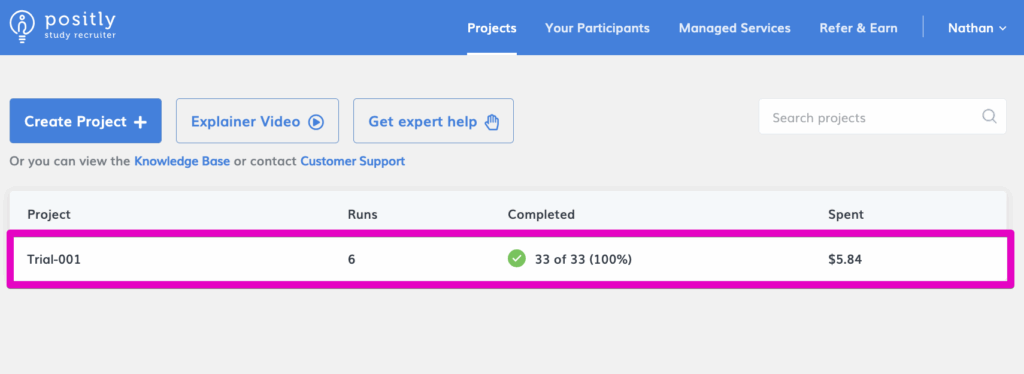
Step 1: Navigate to Your Project
First, go to the specific project for which you need the receipt. Make sure you’re viewing the correct project before proceeding.
Step 2: Locate the Billing Statement Button
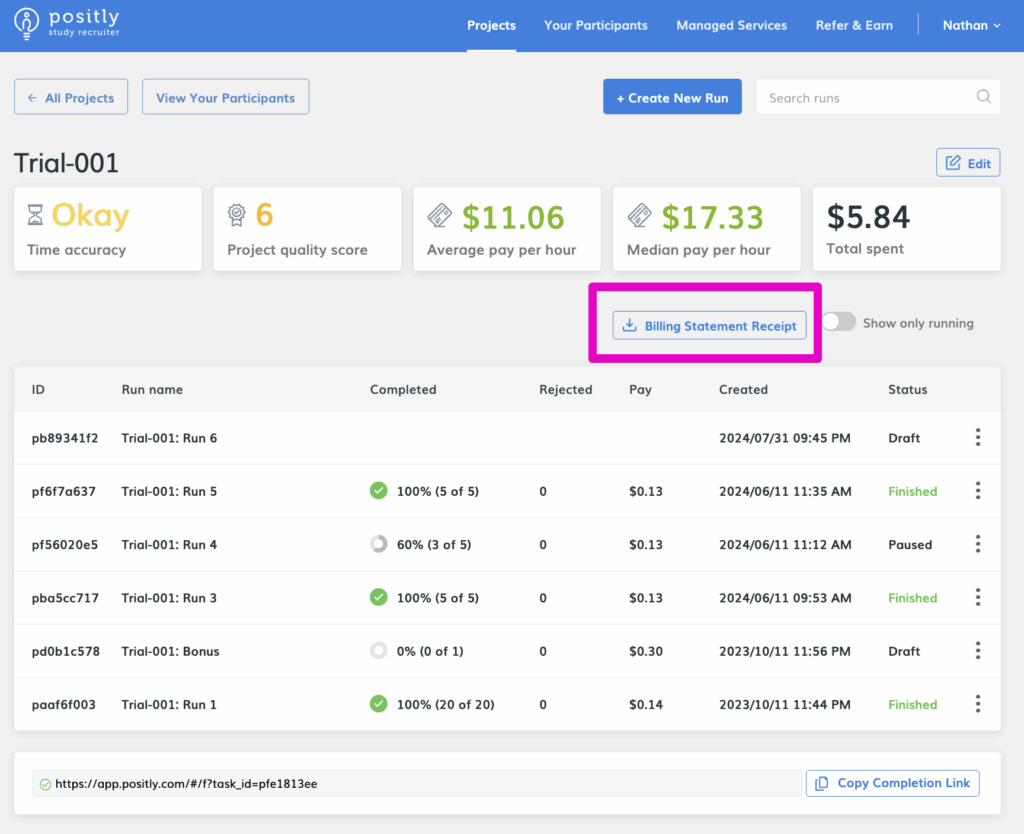
Once you’re in your project, look for the “Billing Statement Receipt” button. This button is located in the project’s main page.
Step 3: Generate Your Receipt
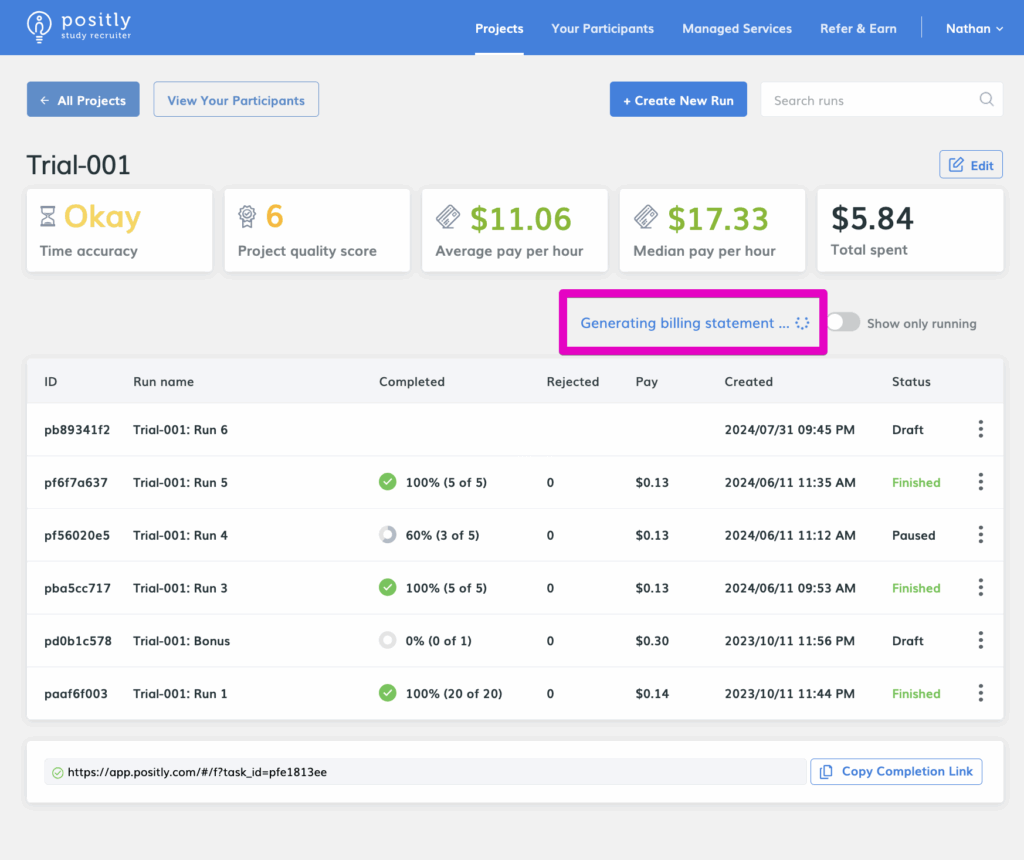
Click the “Billing Statement Receipt” button to initiate the receipt generation process. Please be patient and allow a few seconds for our system to compile and generate your billing statement.
Step 4: Download Your Receipt
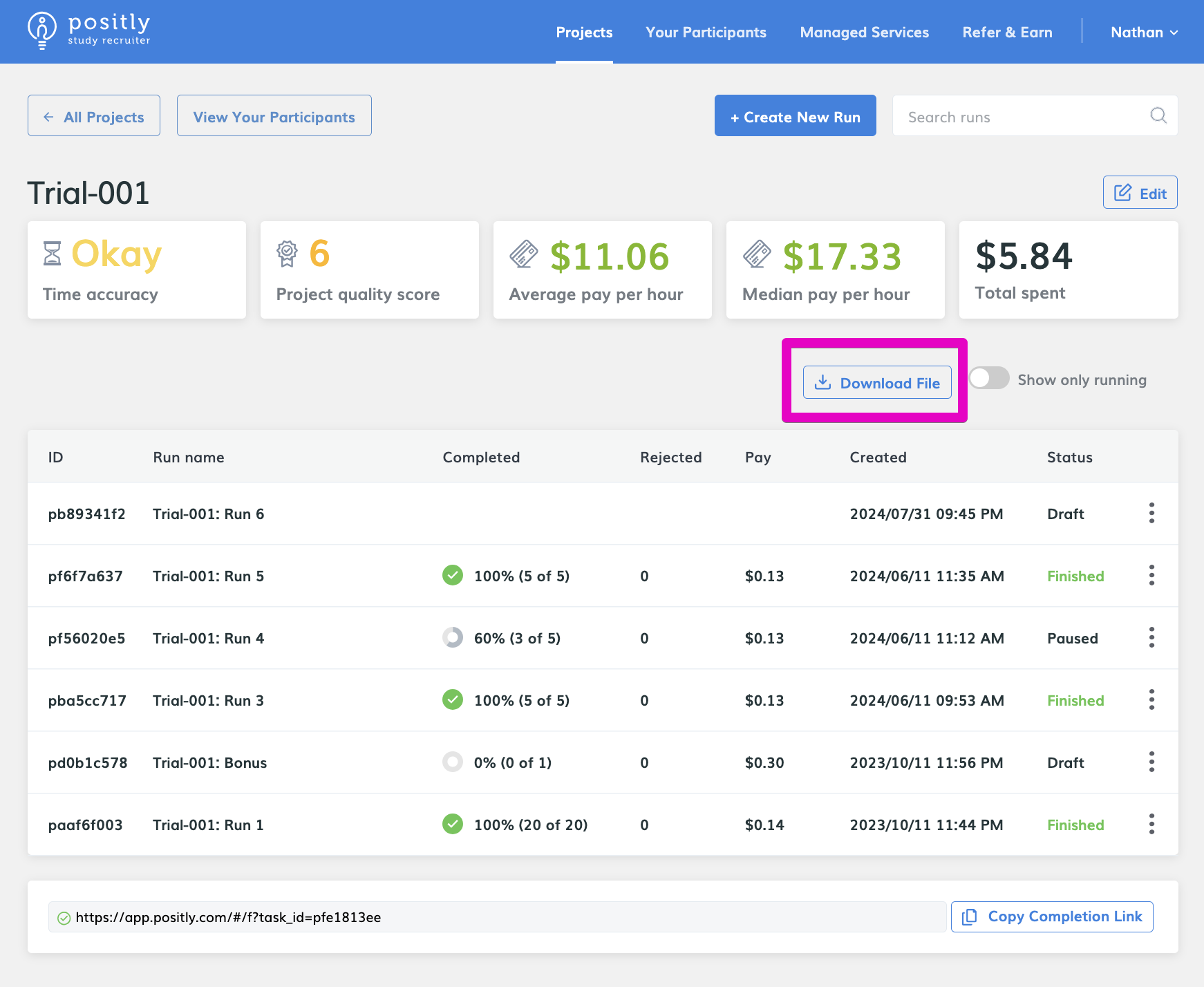
After the system has finished processing your request, a “Download File” button will appear on the screen. Click this button to automatically download your billing statement to your computer’s default download location.
What to Expect
- Processing Time: Depending on how big is your project, receipt generation typically takes just a few seconds to a minute
- File Format: Your receipt will be downloaded as a PDF
- File Location: The receipt will be saved to your computer’s default download folder
- Content: Your receipt will include all relevant billing information for the selected project
Need More Detailed Transaction Data?
If you need more detailed transaction data, such as spending for each recruitment assignment, you can access comprehensive transaction information through the billing section:
- Navigate to the billing section at https://app.positly.com/#/users/billing
- Locate the Transactions section on the page
- Review your complete transactions list with detailed breakdowns
- Use the date range filter to narrow down transactions to specific time periods
- Download the transaction data as a CSV file for further analysis or record-keeping
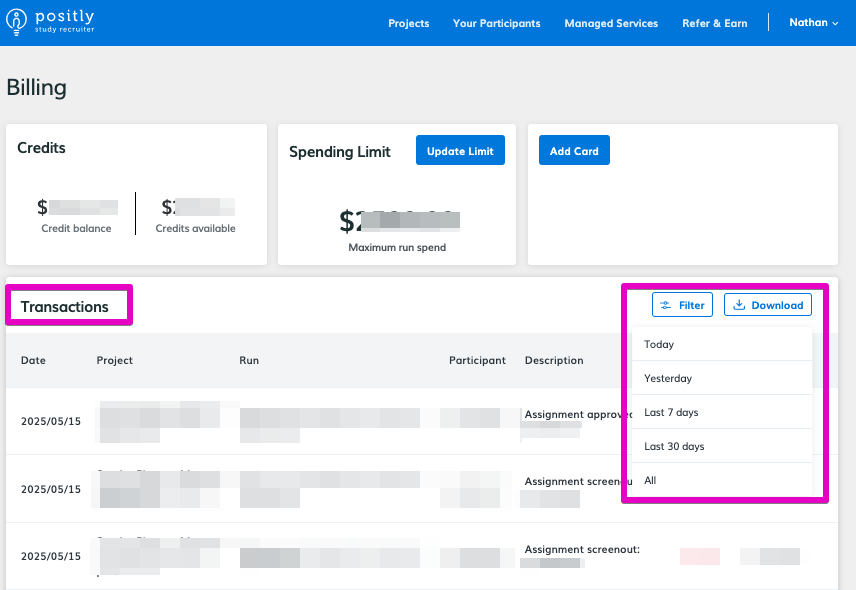
This detailed view provides granular information about your spending patterns and individual recruitment assignments, making it perfect for detailed financial analysis or reporting.
Need Additional Help?
If you encounter any issues during the download process or have questions about your billing statement, please don’t hesitate to contact our support team for assistance.
Helpful?

 (No Ratings Yet)